OpenVoIP: An Open Peer-to-Peer VoIP and IM System

OpenVOIP

Welcome to OpenVoIP, an open source peer-to-peer VoIP and IM system of ~1000 nodes running on ~300 PlanetLab machines. OpenVoIP runs Peer-to-Peer Protocol (P2PP) which can be used to implement well-known DHTs or unstructured protocols. Unlike OpenDHT, where it was only possible to put/get the data, we allow non-PlanetLab nodes to become part of our overlay. This means that you can download the P2PP executable for Windows XP, Linux, or OpenWengo-P2PP SIP phone and connect to our overlay. Your node will provide routing and storage services to the overlay.

This software project appears to be in the experimental phase.

Onion Pi Tor Router made with Raspberry Pi

It appears to me this would be good if you wanted to run an open router and try to protect yourself from what users may do on via your router.

Research Links

Notes

  • You'll still need to set up the access point and Tor software according to our tutorial. This project is best used by people with a little bit of command-line, linux or Raspberry Pi experience. If you've set up a Raspberry Pi and configured it before, this project will be a fun experience.

Media Wiki Domain move with software and database update

Procedure

  1. create new subdirectory under blog to hold the mediawiki software
  2. upload mediawiki to #1
  3. run the mediawiki install by pointing a browser to #1
  4. during install point to the old database.  The install will recognize the database needs updated.  Let it do that.
  5. You will need to regenerate LocalSettings.php. After you download it upload it to #1
  6. Dial a browser up to #1. Your install should be working now.  Remember: it is still using the old database though
  7. download Image folder from old mediawiki install and upload it to the new install – this is to transfer the photos from the old install
  8. New database:  I want a unique database not mixed with others so on dreamhost I am forced to create a new subdomain.  
  9. Using the new subdomain of #8 create a new database.  On Dreamhost tends to look like:  mysql.subdomain.yourdomain.com
  10. make a note of the user associated with new database!
  11. If you are going Dreamhost domain to dreamhost domain all you need to do is use the new database HostName.  The DB username has access to whatever database it has been given regardless of what HostName is used.
  12. If you are changing to a different host continue as #11 does not apply.
  13. Ready for transfer of database.  Using PhpMyAdmin export your database with no compression.  The method of import will use BigDump script if your database is big. And too big is not very big with Dreamhost!  If you are going to import using this do not use the Export > Data > Extended Inserts option when you export your existing database.
  14. Make a directory under your install folder called /dump
  15. Get BigDump.php here.   upload BigDump.php to your /dump directory.   The bigdump.php file has instruction on usage in the comments.
  16. upload your database file to /dump directory
  17. point a browser at the /dump directory and run bigdump.php.     
  18. Use phpMyAdmin to verify tables were created and filled by bigdump.php.
  19. delete your old installation and database.  Do any necessary cleanup now or you(I) am likely to forget!

Adding Display Resolutions to Ubuntu Linux

I connected my Ubuntu laptop to an external 24 inch monitor.  I then tried to set the resolution to a level appropriate for a 24 inch monitor: 1920×1200.  However when I looked in the settings the highest resolution was quite low.  I had to add additional resolution levels manually. 

Research Links

I followed the procedures detailed in the linked articles.  When I tried 1920×1200 resolution with 60Hz frequency it did not show up in the configuration gui list.  It must have been illegal.  When I changed to 70Hz it did work.   Note that it is important to generate the mode line individually for each resolution/frequency combination.  I did a bonehead thing and reused the line for the 1280×1024 for the 1920×1200 mode and of course that did not work. 

The changes made are not permanent and upon reboot will be lost.

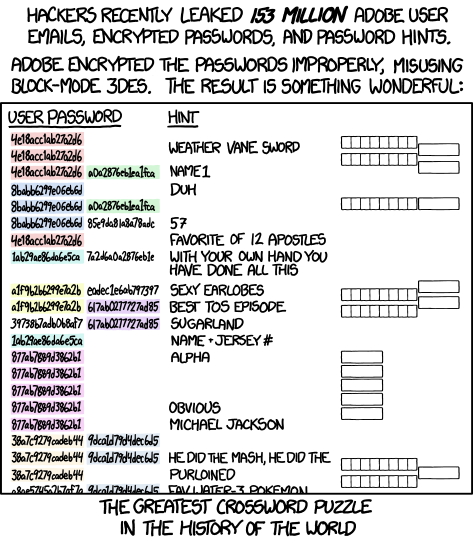
Adobe User Information Leak – The Crossword Puzzle

Adobe got hacked and millions of passwords plus password hints were leaked.  XKCD made a comic depicting a crossword puzzle based on the leak:

And once done you knew it was only a matter of time before someone made the real thing. You can see that here: Live Adobe CrossWord Puzzle Page

Oops…I better change my password.

Research Links