Making an Ubuntu Linux USB StartUp Boot Disk for Non EUFI
Steps
- Install Startup Disk Creator:
- Perp: Where do you find "startup disk creator" in ubuntu. I do not see it
- sudo apt update && sudo apt install usb-creator-gtk
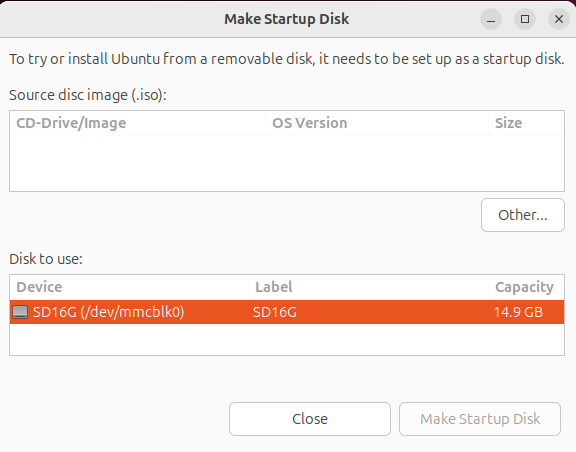
- Create a Startup Disk
- Use Linux install ISO as source
- USB stick has to be unmounted – use sdX as target
Research Links: Startup-Disk-Creator segment
The "Could not write the disk image" error with Ubuntu Startup Disk Creator is usually due to permission issues, the USB drive being mounted, or the tool having problems with specific ISO files or drive formats.
Research LInks
On that ThinkCentre Edge 71 the Ubuntu installer is almost certainly doing an EFI?style (UEFI) install, while the machine is effectively legacy/BIOS?only, so the disk ends up without valid MBR boot code; Mint in your case is installing in legacy mode and writes a proper BIOS GRUB to the MBR, so it boots.
What’s actually happening
-
The Edge 71 is from the awkward “transition” era and many of them do not expose proper UEFI boot in firmware, or only very partially.?
-
Ubuntu, when booted from USB in UEFI mode, creates an EFI System Partition and installs GRUB as an EFI loader, which expects the firmware to support UEFI boot entries. On a BIOS?only (legacy) boot, the firmware looks for an MBR bootloader and finds none, so you get “no operating system found / not a bootable disk.”?
-
There is a documented case of exactly this on a ThinkCentre Edge 71: Ubuntu installs fine, but the disk is not bootable because GRUB is not in the MBR and the firmware cannot use the EFI partition. Converting that install to legacy mode (or reinstalling in legacy) fixes the issue.?
-
Linux Mint’s installer, depending on how you boot the DVD (likely legacy/BIOS) and possibly its detection logic, installs GRUB in legacy mode to the MBR, which that firmware can boot, so Mint starts normally.
How to make Ubuntu boot like Mint on that box
To make Ubuntu behave like the successful Mint install on that Edge 71, you need to ensure the installer is running in legacy/BIOS mode and that GRUB is installed to the disk MBR (for example, /dev/sda):
-
Enter the BIOS on the Edge 71 and disable any UEFI options if present, or explicitly enable “Legacy”/“BIOS” boot only.
-
Recreate the Ubuntu USB so it can boot in legacy mode (on some tools like Rufus, pick a “BIOS or UEFI” / “MBR” target instead of “UEFI?only”). A common mistake is using a UEFI?only USB on a legacy BIOS.
-
When you hit the F12 boot menu, pick the non?UEFI USB entry (often it appears twice: one with “UEFI:” in front and one without; choose the plain one).?
-
In the Ubuntu installer’s partitioning step, make sure the “Device for bootloader installation” is the disk itself (e.g.,
/dev/sda), not a partition. That puts GRUB in the MBR, which your Edge 71 firmware can boot.? -
If you already have Ubuntu installed but it won’t boot, you can boot a live system (Ubuntu or Mint), run Boot?Repair, and explicitly reinstall GRUB in legacy mode to the MBR; that is what solved the “not a bootable disk” case on another Edge 71.??
Why Mint “just works” here
-
You likely booted the Mint DVD in legacy mode (no UEFI), so the installer never tried an EFI install and instead set up plain BIOS GRUB in the MBR.
-
Ubuntu, especially when started from some USB creation tools, tends to default into UEFI mode on hardware that looks UEFI?capable, even when the firmware can’t actually boot that way reliably on these older Lenovos.
If you tell me which Ubuntu version and which tool/options you used to create the Ubuntu USB, I can give you exact steps for that combo.
If using Linux (Ubuntu/Mint machine)
Option A – Startup Disk Creator (GUI):
-
Insert the USB stick.?
-
Open “Startup Disk Creator” on Ubuntu/Mint.?
-
Select the Ubuntu ISO as the source and the USB stick as the target.?
-
Click Make Startup Disk and wait for completion, then safely remove the stick.
Yes, the HP ProLiant MicroServer Gen8 has the exact same bootloader issue as your Edge 71—it's strictly BIOS/legacy only (no UEFI support), so Ubuntu often installs a UEFI bootloader that the firmware ignores, leading to "no bootable device" after install while Mint succeeds in legacy mode.
Why identical symptoms
The Gen8 is BIOS?only like the Edge 71, with a B120i controller that defaults to RAID mode (not AHCI), which confuses Linux installers.
Ubuntu from a UEFI USB tries GPT + EFI partition, but the firmware can't chainload EFI stubs and skips to "no OS."
Mint DVD typically forces legacy boot, installs MBR GRUB, and works if the controller is happy.
Quick fix for Gen8
-
Enter BIOS (F9), set SATA controller to AHCI (not RAID), save/exit.
-
Use the legacy USB steps I gave before (Rufus MBR/BIOS or
dd). -
During install, target bootloader to
/dev/sda(whole disk).? -
If it still fails post?install, boot live USB, chroot, and reinstall GRUB:
grub-install --target=i386-pc /dev/sda.?
Many users report Ubuntu/Debian working perfectly after AHCI + legacy USB
lrGzAQ8o